---
title: "Put a PDF on your website"
description: "Upload a PDF, make a grant, and paste the embed code into your page. No server, and no code of your own."
source: "https://www.cloudpdf.com/docs/platform/quick-start/website"
---
# Put a PDF on your website
In five minutes, your PDF is on your page, in a viewer people can scroll, zoom, search and read on
any device. Below is a sample PDF, opened the way your page will open yours. You need a CloudPDF
account and a page you can edit. No server, and no code of your own.
## 1. Upload a PDF
Sign in to the [dashboard](https://app.cloudpdf.com), and on **Documents**, click **Upload** or drop
the file on the page.
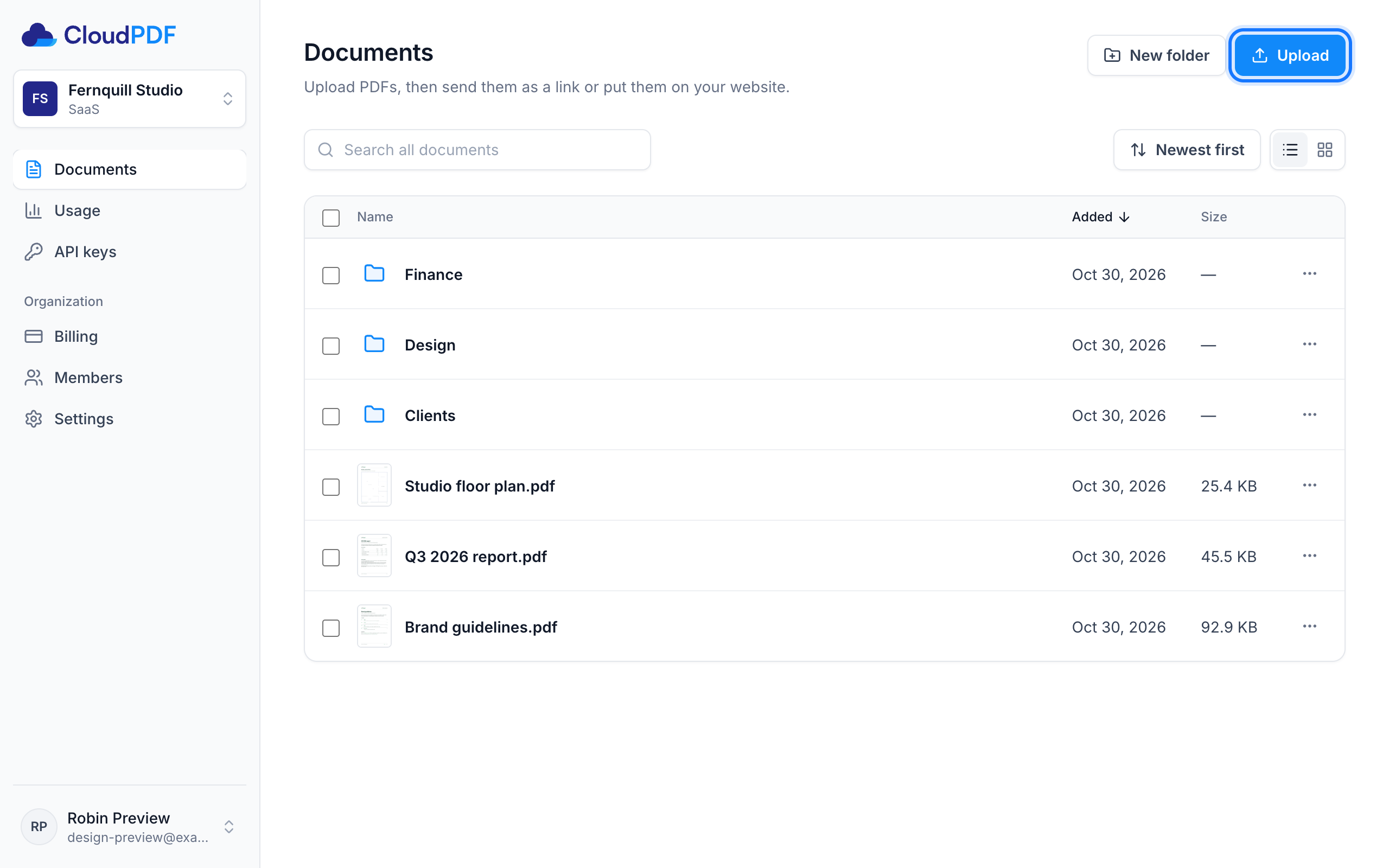
CloudPDF keeps the file and gets its pages ready to show. A large PDF takes a few seconds.
## 2. Make a grant
A grant lets people open the document without an account. Open the document, then click **New
grant**:
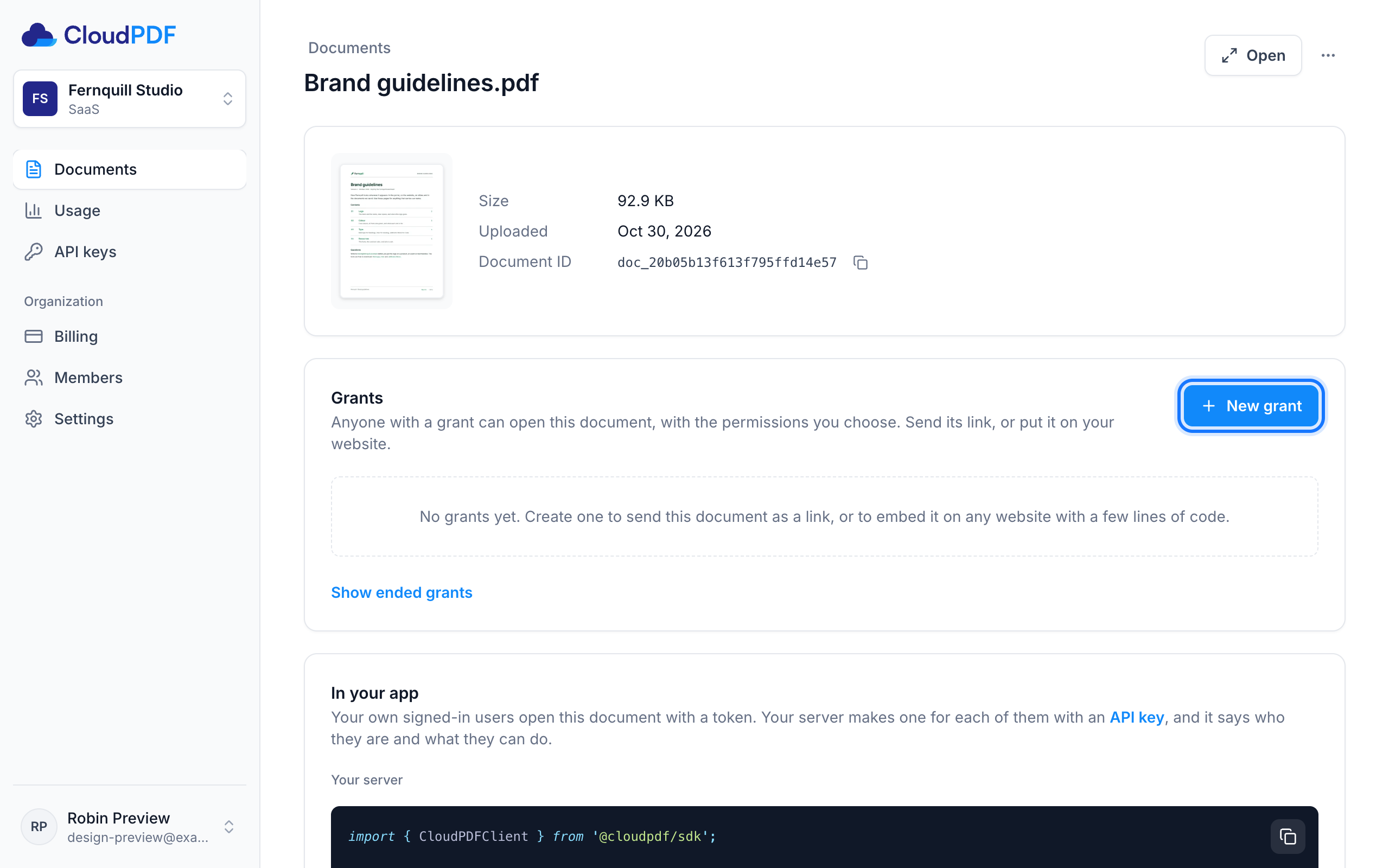
Give the grant a name you'll recognize, such as "Website". The rest is already right for a public
page: people can **Read** the document, its pages show as **Images**, and it opens **Anywhere**.
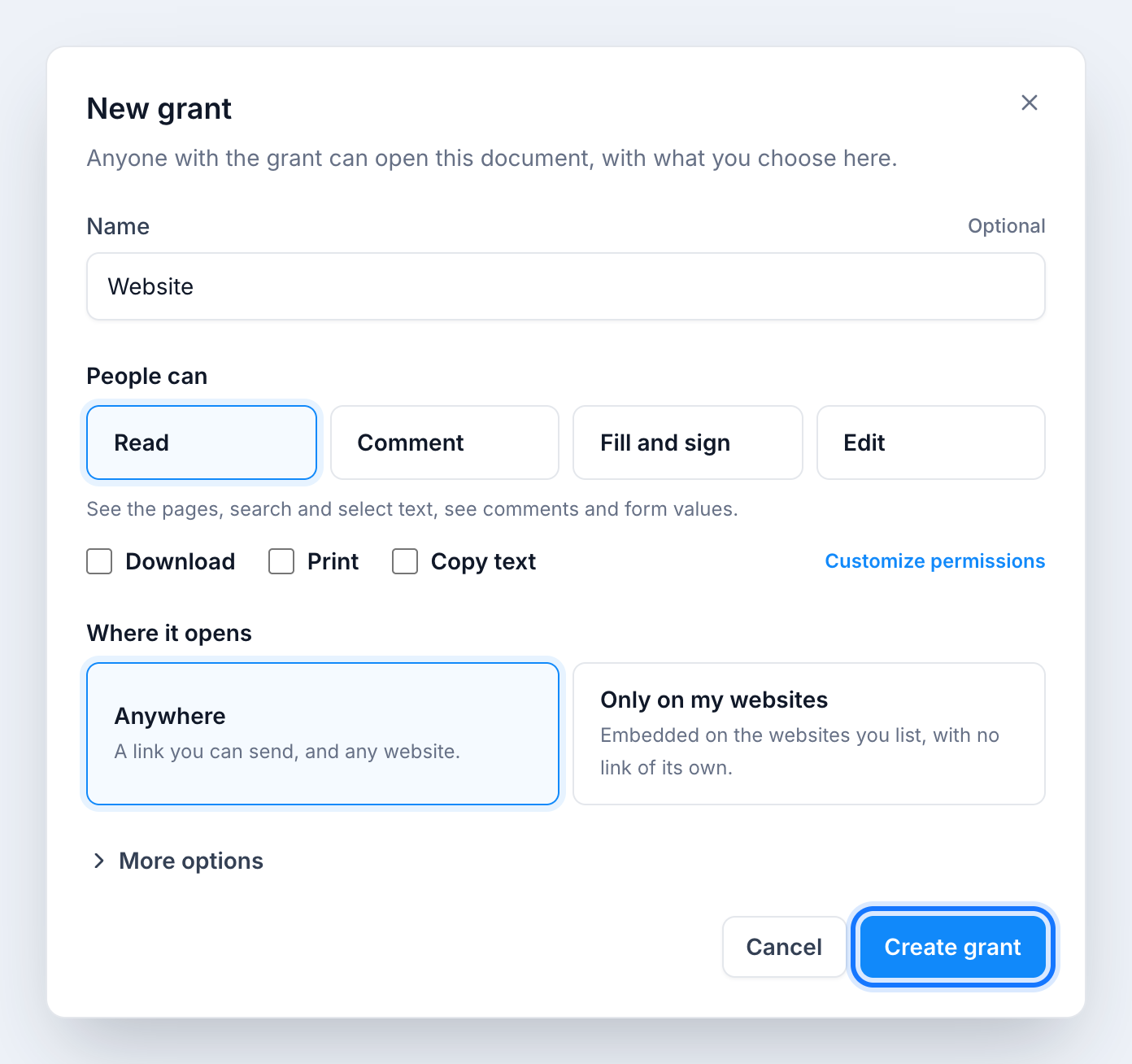
Click **Create grant**.
## 3. Paste it into your page
Choose **Embed on a website**, and copy the code:
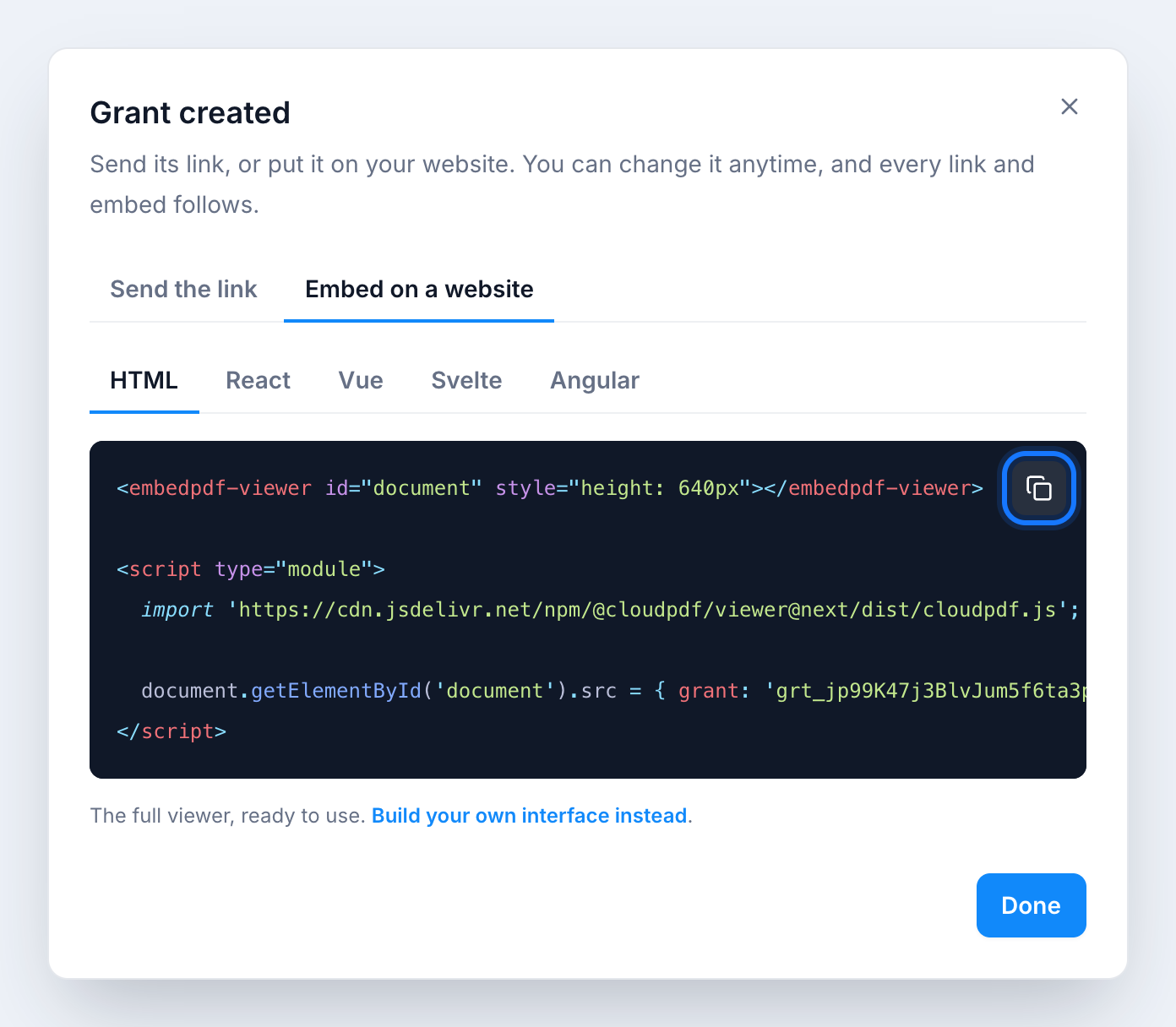
Put it where the PDF should appear. The script loads the viewer, and its last line opens your
grant:
```html
```
The viewer fills the box you give it, so give it a height. Open your page, and the PDF is there.
### In React, Vue, Svelte or Angular
The grant opens the same way in the viewer component for your framework. Install it:
**React**
```sh
npm install @cloudpdf/viewer-react
```
**Vue**
```sh
npm install @cloudpdf/viewer-vue
```
**Svelte**
```sh
npm install @cloudpdf/viewer-svelte
```
**Angular**
```sh
npm install @cloudpdf/viewer-angular
```
Then give it the grant. The dialog has this code too, with your grant in it:
**React**
```tsx
import { PDFViewer } from '@cloudpdf/viewer-react';
export function BrandGuidelines() {
return ;
}
```
**Vue**
```vue
```
**Svelte**
```svelte
```
**Angular**
```ts
import { Component } from '@angular/core';
import { EpdfPdfViewer } from '@cloudpdf/viewer-angular';
@Component({
selector: 'app-brand-guidelines',
imports: [EpdfPdfViewer],
template: ``,
})
export class BrandGuidelines {}
```
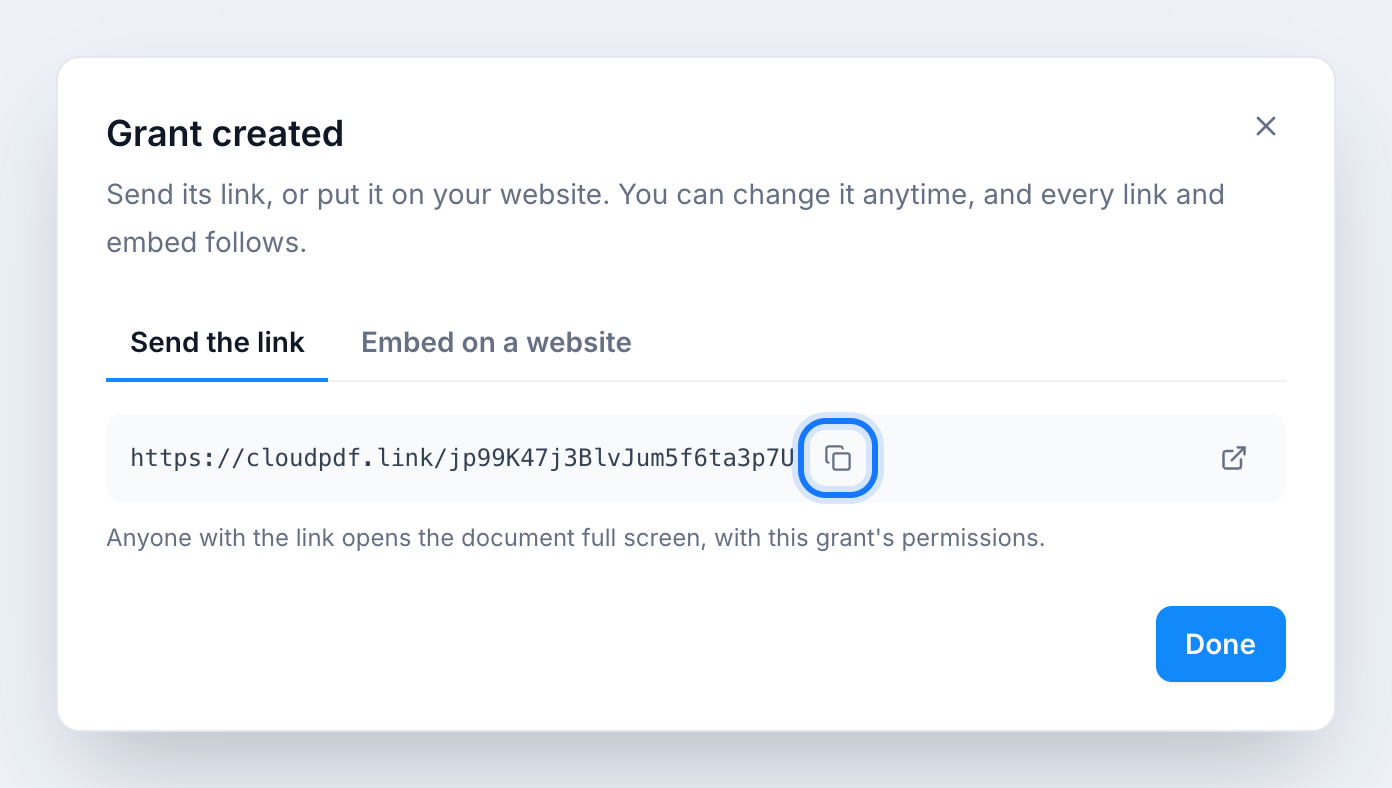
## 4. Or send the link
A grant that opens Anywhere has a link of its own. Send it in an email or a chat, and the document
opens full screen:
## Change it whenever you like
A grant keeps working until you pause it or end it, or until it expires. From its menu on the
document's page, you can:
- let people do more: **Comment**, **Download** or **Print**;
- ask for a passphrase, or let the grant expire on a date;
- pause it, and resume it;
- end it: its link and every page that embeds it stop opening at once, and a viewer already open
stops within 10 minutes.
Every page that embeds the grant follows on its next visit, so you never touch your code again.
## Next steps
- [Add PDFs to your app](https://www.cloudpdf.com/docs/platform/quick-start/app.md) — Your own signed-in users, each with a token from your server.
- [Make the viewer yours](https://www.cloudpdf.com/docs/viewer/vanilla/quick-start.md) — Your colors, the features you want, and buttons of your own.